
Google review link generator
Free · No signup · Guide approved 18 November 2026 by Nirav Italiya, founder · How we check guides
How do I get a direct link for customers to leave a Google review?
Paste your Google Place ID and the tool builds a direct review link (search.google.com/local/writereview?placeid=…) that opens the review box for your business, plus a printable QR card with stars and your name. Send the link after delivery, add it to WhatsApp and email footers, and put the card in parcels and on your counter.
Where do I find my Place ID?
- Open Google’s Place ID Finder.
- Type your business name in the map’s search box and pick it from the list.
- Copy the Place ID shown under your business name (it usually starts with “ChIJ”) and paste it above.
Your business needs a Google Business Profile to have a Place ID. Service-area businesses without a public address may not appear in the finder; use “Ask for reviews” in your Business Profile instead.
Your review link
Paste your Place ID to make the link.
The link opens Google’s review box for your business. Send it in order confirmation messages, WhatsApp chats and email footers.
Independent tool, not affiliated with Google. Google’s rules do not allow paying for reviews or asking only happy customers, so invite everyone the same way.
Words done, photos next
Product photos that match your copy
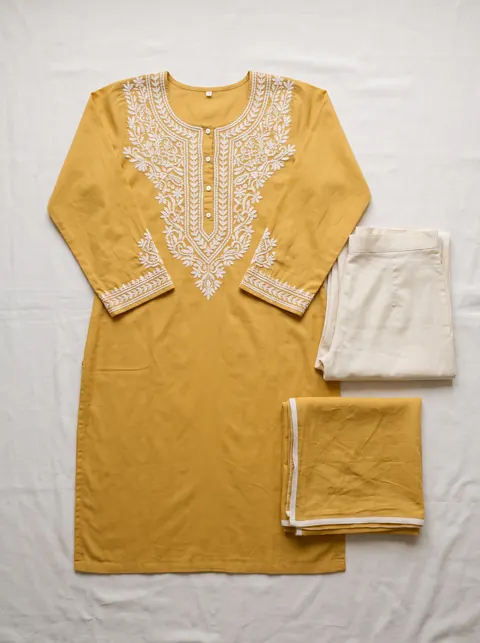
Great titles and captions need photos that live up to them. DrapifyApp puts your garment on an AI model in the scene you choose, from one flat-lay photo.
- First 2K photo free, no card
- Ready in about 3 minutes
- Full commercial rights

How to use it
- Find your Place ID with Google’s Place ID Finder (steps are on this page).
- Paste it in and add your business name for the card.
- Test the link, then copy it into your messages.
- Download the QR card and print it for packaging or your shop.
Who this is for
This tool is for businesses with a Google Business Profile: a shop with a counter, a boutique that also ships orders, a home-based seller with a listed address, or a service business that customers can find on Google Maps. It turns the profile’s Place ID into a link that opens the review form directly and a printable card that customers can scan.
Typical uses are a review request in the delivery confirmation message, a line in an email footer, a QR card slipped into parcels, and a standee at the billing counter. Online-only sellers without a Business Profile cannot use it, because Google reviews belong to a place on Google Maps.
What the tool builds
The link has the form https://search.google.com/local/writereview?placeid= followed by your Place ID. You can paste just the ID, or a whole line or link that contains it: the tool picks out a placeid= value or a code starting with ChIJ, and warns you if what is left does not look like a Place ID.
The QR card is a 1200 × 1600 pixel PNG (a 3:4 shape) with fixed English wording: “Enjoyed your order?”, “Leave us a review on Google”, five stars, the QR code, “Scan with your phone camera” and your business name if you added one (up to 40 characters). The QR code takes up about two thirds of the card’s width.
Print sizes for the QR card
Because the card is a fixed number of pixels, printing it larger lowers its sharpness. Around 300 dpi looks crisp in print; the QR code itself scans reliably well below that, so the card stays usable even at large sizes.
| Card width | Approx. print resolution | QR code width |
|---|---|---|
| 5 cm | 610 dpi | 3.4 cm |
| 6 cm | 508 dpi | 4.1 cm |
| 8 cm | 381 dpi | 5.5 cm |
| 10 cm | 305 dpi | 6.8 cm |
| 15 cm | 203 dpi | 10.3 cm |
Getting the link in front of customers
- Delivery message: send one short message after the order shows as delivered, with the link on its own line so it is easy to tap.
- Parcel insert: print the card at 6–8 cm wide on thick paper, or several per A4 sheet, and add it to every parcel, not only to orders you expect to go well.
- Counter: print at 10–15 cm wide and place it where people wait to pay, at eye level, away from glare that makes the QR hard to scan.
- Email and invoices: add the link to your email signature and the footer of PDF invoices, with plain wording such as “Review us on Google”.
Before you print hundreds
Press “Test it” while signed in to a Google account on a phone and on a computer: it should open your business with the star rating box. Then scan a printed proof of the card with two different phones. If the profile is ever merged, moved or recreated, the Place ID can change, so test the link again after any change to the listing and before reprinting cards.
Why a direct link gets more reviews
Every extra tap loses people. A direct link skips searching for your business and opens the star rating box straight away, on phones and computers.
When to ask
Ask soon after the customer has received and tried the product, for example a day or two after delivery. Put the QR card inside the parcel, and add the link to your delivery confirmation message.
Stay within Google’s rules
Google does not allow offering discounts or gifts in exchange for reviews, or asking only happy customers (“review gating”). Ask everyone the same way.
Common mistakes
- Pasting a Maps share link (maps.app.goo.gl) instead of the Place ID; short share links do not contain it.
- Copying the Place ID of a similarly named business from the finder, so reviews go to someone else. Check the address shown.
- Printing the card so small, or on glossy paper under strong light, that phones struggle to read the QR code.
- Asking for a review on the day of dispatch, before the customer has received or tried the product.
- Sending the link only to customers who said something positive, which Google’s policies treat as review gating.
What this tool can’t do
- It depends on Google’s review URL format. If Google changes it, the link may stop opening the review box directly, which is why testing matters.
- The card wording is fixed in English. For other languages or your own branding, use the link with the QR code generator and design the card yourself.
- It cannot find your Place ID for you or check that the profile is verified; you look it up with Google’s Place ID Finder.
- A customer must be signed in to a Google account to post a review, which the link cannot change.
How this guide was made: drafted with AI assistance from the tool’s own calculations and behaviour, then checked against our editorial policy and approved by the founder before publishing.
Questions
- How do I find my Google Place ID?
- Use Google’s Place ID Finder: search your business on its map and copy the ID shown, which usually starts with ChIJ.
- Does the review link work on phones?
- Yes. It opens the review box in the Google Maps app or the browser.
- Is this the same as the link in my Business Profile?
- Google Business Profile’s “Ask for reviews” gives a short link to the same review box. This tool also makes a printable QR card.
- Can I offer a discount for reviews?
- No. Google’s policies prohibit incentives for reviews and may remove them.
- Is this an official Google tool?
- No. DrapifyApp is independent and not affiliated with Google.
- How do I get more Google reviews?
- Ask every customer soon after delivery with a direct review link, add the QR card to parcels, and reply to reviews you get.
- Can I reply to Google reviews?
- Yes, from your Google Business Profile. Replying to both good and bad reviews shows customers you care.
- How do I find my Google Business Profile?
- Search your business name on Google or Maps while signed in, or open business.google.com to manage it.