
Rotate and flip images
Free · No signup · Updated November 2026 by the DrapifyApp team
How do I rotate or flip a photo?
Add your photos, rotate them left or right in 90° steps, mirror or flip them, check the preview and download, singly or as a ZIP. Photos keep their full resolution, and PNGs stay PNG. Everything runs in your browser.
Your photos stay on your device. Nothing is uploaded.
Rotation: 0°
Better than resizing
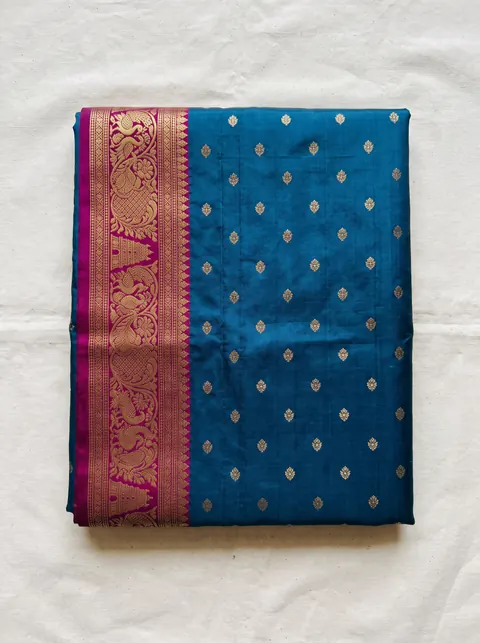
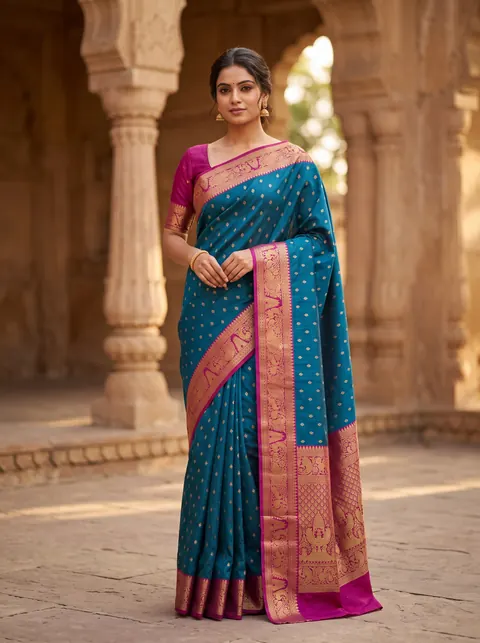
Turn a flat-lay into a model photo
Fixing size and background is step one. DrapifyApp puts your garment on an AI model, ready for any marketplace, in about 3 minutes.
- First 2K photo free, no card
- Ready in about 3 minutes
- Full commercial rights
How to use it
- Add one photo or many.
- Rotate left or right, or mirror and flip.
- Check the preview.
- Download.
Sideways photos from phones
Phones record which way up a photo was taken in hidden data that some websites ignore, so a photo can look right on your phone but sideways after upload. Rotating and saving here fixes the pixels themselves.
Mirroring product photos
Mirror only when it doesn’t change the product: printed text, logos and asymmetric designs will appear reversed.
Questions
- Does rotating reduce quality?
- Rotation by 90° steps keeps every pixel. JPGs are saved again at high quality.
- Can I rotate many photos at once?
- Yes. The same rotation applies to all and they download as a ZIP.
- Why is my upload sideways?
- The site ignored the orientation tag. Rotating and saving here makes the photo upright in the pixels.